REACT ACCESSIBILITY PLUGIN
A more comfortable web,
on your terms.
Give people control over how they read and view your React application—with customizable display preferences, a movable widget, and settings that stay with them.
A composable React library. Personal to every visitor.
npm install accessibility-plugin-react
YOUR APP. THEIR PREFERENCES.
MAKE YOURSELF COMFORTABLE
Less explaining.
More experiencing.
Open the blue button and make this reading space your own. The demo is a separate document, so its preferences stay clear of the portfolio navigation.
Loading the demo… Open it directly if the frame does not load.
Then give the lines a little more space.
Try saturation, contrast and grayscale together.
Turn on a reading guide, then move the button.
Reload to restore preferences. Reset to start fresh.
The reading sandbox demonstrates library effects on real typography, images, video and form controls.
A PERSONAL TOOLKIT
14 ways to adjust.
One easy way back.
01 / TEXT & READING LAYOUT
Find your reading rhythm.
Adjust the type, the space and the shape of a page. Each preference is yours to combine.
- Text size50–200% · 10% steps
- Scale text and its associated line heights together, including explicit pixel sizes. A reflow-safe reading adjustment separate from browser zoom.
- Line height50–200% · 10% steps
- Independently scale existing line height to give each line the breathing room you prefer without breaking component bounds.
- Letter spacing0–10 pixels
- Open up the space between letters. Zero restores the application’s original typography.
- Text alignmentAll five choices
- Keep the original alignment, or choose left, center, right or justified. The comfortable choice belongs to the reader.
02 / COLOR & VISIBILITY
A different way to see.
Soften color, increase definition or choose a palette. Filter preferences work together cleanly.
- ContrastOriginal + seven adjustments
- Reduced at 0.5×; increased at 1.25×, 1.5× and 2×; plus yellow-on-black, white-on-black and blue-on-yellow palettes.
- SaturationOriginal · 20% · 200%
- Turn down color intensity or make it more vivid, while keeping the option to return to original color.
- Invert colorsAn alternative view
- Invert supported page content, including images, without altering the widget’s own controls.
- GrayscaleLess color, more focus
- Remove visible color differences. Saturation stays selected and becomes visible again when grayscale is turned off.
- Highlight linksUnderline + four treatments
- Emphasize links with the default highlight, yellow-on-black, blue-on-yellow or black-on-white.
03 / FOCUS & FEWER DISTRACTIONS
Keep your place. Clear the noise.
Reading aids follow your attention. Visibility controls leave the page’s layout in place.
- Reading guidePointer and keyboard focus
- A visible horizontal guide follows your pointer or the focused page element to help you keep your place.
- Reading maskA clear reading window
- Dim surrounding content while leaving a clear window. Combine it with the reading guide for a more focused view.
- Larger cursorHigh-contrast pointer
- Make the pointer easier to locate on cursor-based devices, with a native fallback. Touch-only devices keep their usual interaction.
- Hide imagesRetain the layout
- Hide supported images and CSS background images while keeping the space and structure around them.
- Hide videosVisual visibility control
- Hide video elements and recognized YouTube/Vimeo embeds. Playback and sound continue unless you pause or mute the player.
Change your mind. Start fresh.
Reset display settings restores defaults—including registered custom preferences—while keeping your saved button position. The panel stays open, so you can see the result.
Palette choices are preferences, not a guarantee of contrast for every rendered element. Grayscale removes visible color differences while active; retained saturation returns when it is turned off.
STARTING POINTS · USER CONTROLLED
Eight accessibility profiles.
Suggested presets, never locked in.
Preferences are personal. Rather than rigid medical categorization, these profiles provide curated starting suggestions with deterministic overrides. Custom changes are preserved even when switching presets.
Motor Impaired
Motion & TargetsReduced motion, enhanced focus rings, richer tooltips, and oversized touch targets (48px+) for effortless touch and keyboard access.
Blind / Screen Reader
Semantics & AudioPage landmark structure navigation, accessible element descriptions, and assistive read-aloud support.
Color Blind
High ContrastTargeted contrast palettes and non-color-only link indicators without distorting diagrams or imagery.
Dyslexia
LegibilityDyslexia-friendly font preference, comfortable line and letter spacing, and a horizontal tracking guide.
Low Vision
Reflow ScalingText reflow scaling up to 200%, high-contrast cursor, and prominent focus indicators that avoid clipping.
Cognitive & Learning
Focus AidLow-distraction reading view, simplified page structure, and reading window support for better comprehension.
Seizure & Epileptic
Motion SafetyStops nonessential CSS/Web animations, transitions, and autoplaying media to prevent rapid visual flashing.
ADHD
Clutter-freeFocused reading mask dimming peripheral distractions, combined with an eye-tracking reading ruler.
Zero medical profiling or data capture. Presets are purely local UI conveniences. The package never assumes that everyone with a given condition requires identical settings, and turning off a profile cleanly restores baseline preferences.
A WIDGET THAT MAKES ROOM
Right where
you want it.
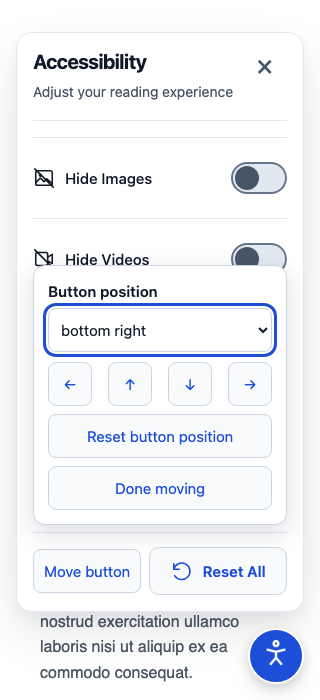
Drag the circular blue trigger out of the way. Or skip dragging entirely: choose one of four corners, use the explicit arrow controls, or move with Alt + arrow keys.
- The last completed position is remembered and adapts when the viewport changes.
- Cancelling a drag never doubles as a click to open the panel.
- Reset button position is separate from display reset.
Keyboard and click alternatives make dragging optional.
SMALL SCREENS · OVERSIZED TARGETS
The tools scroll.
The essentials stay.
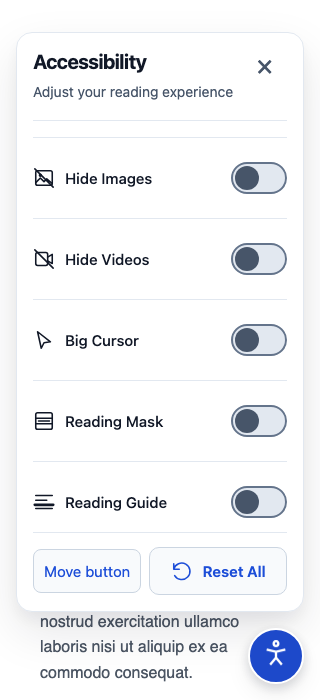
On narrow and short screens, the heading, Close, movement action and footer remain reachable. Only the tool list scrolls, within a safe-area-aware panel.
Oversized Controls Mode: Set largeControls={true} to guarantee minimum 48×48px interactive touch targets across every button and slider, adhering to WCAG 2.5.8 recommendations.
The panel is non-modal: keep interacting with the page without a focus trap. Closing it returns focus to the trigger, while your preferences continue to apply.
PREFERENCES, WITHOUT THE FRICTION
Feels familiar.
Every time you return.
Preferences and widget placement are stored locally in the visitor’s browser. They survive closing the panel and ordinary route changes when your application keeps the provider mounted.
Local by design
The library doesn’t transmit preferences, require accounts or introduce preference analytics. Your hosting application’s own analytics are separate.
Configurable storage modes
Choose storage="local" for persistent visits, storage="session" for shared kiosks, or storage="none" (or persist={false}) for in-memory use only.
Reversible effects
Change, reset or remove the provider to restore the host properties the library owns, while respecting unrelated application styling.
BUILT FOR REACT COMPOSITION
Your app.
Your composition.
Pick the controls you need. Arrange them in JSX. Keep one provider at the persistent application root, alongside your content rather than mounting a new one on every route.
Owns preferences, persistence and effects.
Opens the visitor’s movable widget.
Contains the controllers you choose.
Start with a few thoughtful controls.
Install the package, import the stylesheet explicitly and add your widget near the root. One provider, one button/list pair per document.
npm install accessibility-plugin-react- React 18/19 integration
- TypeScript declarations
- ESM and CommonJS builds
- Server-rendering support
- No runtime dependencies beyond React peers
import {
  AccessibilityPlugin,
  AccessibilityButton,
  AccessibilityList,
  FontSizeController,
  ContrastController,
  ReadingGuideController,
  ResetController,
} from 'accessibility-plugin-react';
import 'accessibility-plugin-react/style.css';

export function AccessibilityWidget() {
  return (
    <AccessibilityPlugin
      storage="local"
      statementUrl="/accessibility-statement"
      largeControls={false}
    >
      <AccessibilityButton />
      <AccessibilityList
        title="Display preferences"
        description="Choose the reading view that works best for you"
        closeLabel="Close preferences"
      >
        <FontSizeController />
        <ContrastController />
        <ReadingGuideController />
        <ResetController />
      </AccessibilityList>
    </AccessibilityPlugin>
  );
}
See the full-control composition
import {
  AccessibilityPlugin,
  AccessibilityButton,
  AccessibilityList,
  FontSizeController,
  LineHeightController,
  LetterSpacingController,
  TextAlignController,
  ContrastController,
  SaturationController,
  InvertColorsController,
  GrayscaleController,
  LinkHighlightController,
  ReadingGuideController,
  ReadingMaskController,
  BigCursorController,
  HideImagesController,
  HideVideosController,
  ResetController,
} from 'accessibility-plugin-react';
import 'accessibility-plugin-react/style.css';

export function AccessibilityWidget() {
  return (
    <AccessibilityPlugin
      storage="local"
      statementUrl="/accessibility-statement"
      largeControls={false}
    >
      <AccessibilityButton />
      <AccessibilityList
        title="Display preferences"
        description="Personalize your reading experience"
        closeLabel="Close preferences"
      >
        <FontSizeController />
        <LineHeightController />
        <LetterSpacingController />
        <TextAlignController />
        <ContrastController />
        <SaturationController />
        <InvertColorsController />
        <GrayscaleController />
        <LinkHighlightController />
        <ReadingGuideController />
        <ReadingMaskController />
        <BigCursorController />
        <HideImagesController />
        <HideVideosController />
        <ResetController />
      </AccessibilityList>
    </AccessibilityPlugin>
  );
}
Integrate with Next.js App Router
Put interactive composition and custom hook callbacks in a Client Component. Your Server Component layout can render that client boundary; it does not run client hooks. Effects begin after hydration, so a brief default-style paint is possible.
// components/preferences.tsx
'use client';

// Contains the widget composition shown above.
import { AccessibilityWidget } from './accessibility-widget';
export default AccessibilityWidget;

// app/layout.tsx (Server Component)
import Preferences from '@/components/preferences';
import 'accessibility-plugin-react/style.css';
import type { ReactNode } from 'react';

export default function RootLayout({ children }: { children: ReactNode }) {
  return (
    <html lang="en">
      <body>
        {children}
        <Preferences />
      </body>
    </html>
  );
}
For ordinary React, render the widget beside application content. For Next.js Pages Router, mount it from pages/_app.tsx and import the CSS there. See the maintained setup guide.
COMPOSABLE INSIDE. CUSTOMIZABLE OUTSIDE.
Make it feel
at home.
Adapt scoped CSS variables, class names and inline styles. Choose your trigger icon, panel heading and description, and add fixed footer actions without hiding the essentials.
A little more room to read.
Page styling preview · focus and selected states stay visible
.arap-root {
  --arap-accent: #1e40af;
  --arap-accent-hover: #1e3a8a;
  --arap-selected: #eff6ff;
}

/* Scope overrides to the widget's portal. */
.arap-root .my-panel {
  border-radius: 16px;
}
Customize headings, icon and fixed actions
<AccessibilityButton
  className="my-trigger"
  title="Display preferences"
  largeControls={false}
  icon={<span aria-hidden="true">Aa</span>}
/>
<AccessibilityList
  className="my-panel"
  title="Make yourself comfortable"
  description="Choose the display that works for you"
  closeLabel="Close preferences"
  statementUrl="/accessibility-statement"
  largeControls={false}
>
  <FontSizeController />
  <ResetController />
</AccessibilityList>
GO BEYOND THE BUILT-INS
A preference of your own.
The useAccessibility(featureKey, defaultValue, options) hook connects custom controls to shared state. Register a stable key, validate restored values, apply your effect and return cleanup.
The provider keeps registered effects active even when the control is unmounted. They join persistence and global reset. Definitions remain fixed for the provider’s lifetime.
Read the custom preference contractimport { useAccessibility } from 'accessibility-plugin-react';
export function PageOutline() {
const { value, setValue } = useAccessibility('site:outline', false, {
validate: (next): next is boolean => typeof next === 'boolean',
apply(enabled) {
if (!enabled) return;
const previous = document.body.style.outline;
document.body.style.outline = '3px solid #1747c8';
return () => { document.body.style.outline = previous; };
},
});
return (
<button
type="button"
aria-pressed={value}
onClick={() => setValue(!value)}
>
Outline this page
</button>
);
}Give controls your application’s voice. Configure panel and trigger wording directly. For per-control labels and translations, compose named native controls with the hook and documented feature values; built-in controllers do not accept label props. Explore the public API.
THOUGHTFUL INTEGRATION
Built into a real application.
Tested in your context.
New route content can pick up active preferences while a shared provider stays mounted. Centralized effects combine filters and restore owned styles. For larger documents, profile the actual content and mutation patterns your visitors use.
Dynamic content, text measurements and larger documents
Child insertions and viewport resizing refresh supported content. Late-loaded fonts and changes made only through class or style attributes need a preference refresh to remeasure text. Reapply the preference after the relevant styling settles; there is no public font-refresh API to call. Active text and media effects may traverse the document after relevant mutations. Measure your real page rather than assuming a universal performance budget.
Targeted scopes, iframe documents and Shadow DOM
Built-in effects process current-document HTML and exclude widget portals. There is no selector-based effect-scope prop. For isolated content, use a separately titled iframe like this demo and mount one provider in that document. Shadow trees, iframe interiors, SVG/canvas text and pseudo-elements are not automatically reached. Build application-owned custom effects for specific boundaries when appropriate.
Content security policies and filtered fixed elements
The library uses inline style properties and an SVG data cursor. Verify these against your actual Content Security Policy; the cursor has a native fallback and there is no nonce-based stylesheet renderer. CSS filters create containing blocks and stacking contexts, which can change fixed descendants. Test menus, headers, dialogs and third-party overlays with color adjustments active. Widget portals sit outside filtered host roots.
ACCESSIBILITY-MINDED INTERACTION
Control that stays
in the visitor’s hands.
Native controls, meaningful names and states, visible focus, comfortable touch targets and reduced-motion support. Keyboard, pointer and touch interactions work together in a responsive, non-modal panel.
Display preferences complement accessible design. They do not replace semantic content, keyboard access or accessible application workflows.
The repository documents automated feature, keyboard, reflow and widget-scoped accessibility checks across its tested browser matrix. Automated audits are not certification or a substitute for testing your application with people. Read the recorded test evidence.
A FEW GOOD QUESTIONS
The practical details.
Clear answers for thoughtful integration.
How are preferences stored?
Locally in the visitor’s browser, with validated schema restoration and zero accounts required. Choose storage="local" for long-term persistence, storage="session" for shared or kiosk computers, or storage="none" (or persist={false}) for in-memory use only. No cloud sync or third-party telemetry.
What are Accessibility Profile Presets?
The package includes 8 profile suggestions (Motor, Blind, Color Blind, Dyslexia, Low Vision, Cognitive, Seizure, ADHD). Unlike rigid medical categorizations, these are user-editable starting presets with deterministic override logic: turning off a preset or tweaking an individual setting preserves custom choices.
What is the Oversized Controls mode?
Setting largeControls={true} on AccessibilityPlugin, AccessibilityButton, or AccessibilityList expands touch targets to 48px or larger, meeting WCAG 2.5.8 recommendations. Perfect for mobile interfaces and users with motor difficulties.
Can I customize the appearance?
Yes. Scoped CSS variables (--arap-accent, --arap-selected, etc.), className, and style props let you adapt the widget to any brand. Supply a custom trigger icon, panel title, description, and link directly to your verified accessibility statement using statementUrl.
Can I include only certain controls?
Yes. AccessibilityList is fully composable. Include only the controllers you need, in the exact JSX order you prefer. One AccessibilityPlugin with one button/list pair per document.
Does it work with React 18, 19, and Next.js?
Yes. Fully compatible with React 18 and 19, Next.js App Router (via Client Component boundary), Pages Router, and standard Vite/CRA apps. It exports typed ESM, CommonJS, and CSS, executing safely after client hydration.
Can I add custom preferences?
Use useAccessibility(featureKey, defaultValue, options) inside the provider. Register a stable key, validate incoming values, apply your page effect, and return a cleanup callback. Custom preferences participate in persistence and global reset.
Does resetting settings move the button?
No. Reset restores display defaults (including registered custom preferences) while preserving the visitor’s chosen button position and keeping the panel open. The movement controls feature a separate "Reset button position" action.
Does hiding a video stop playback?
No. It visually hides video elements and supported embeds while preserving layout structure. Media audio continues unless muted or paused via the player controls.
Does this replace an accessibility audit?
No. Personal display preferences complement good design; they never replace semantic HTML, proper ARIA landmarks, form labeling, keyboard navigability, or human accessibility testing. Build accessible foundations first.
OPEN SOURCE. OPEN TO YOUR IDEAS.
Bring personalized reading
preferences to your React app.
A thoughtful starting point for a more comfortable experience.
npm install accessibility-plugin-react